
You have a USB flash drive full of AVI movies. You plug it into your Android TV, navigate to the file, press play — and nothing happens. Or worse, you get a frustrating error message: “Format not supported” or “Cannot play this video.”
If this sounds familiar, you’re not alone. AVI files cause more playback headaches on Android TV than almost any other format. In this guide, I’ll explain exactly why this happens and walk you through every working solution, from converting your files to using the right player apps.
Why AVI Files Won‘t Play on Android TV
The root of the problem isn’t your TV or the file itself — it‘s a mismatch between how AVI files are built and what Android TV expects.
AVI (Audio Video Interleave) is a container format introduced by Microsoft in 1992. Over the decades, it’s been used with dozens of different video codecs, including DivX, Xvid, and MJPEG. The file extension tells you very little about what‘s actually inside the file. When you try to play AVI files on Android TV, the system’s built‑in player often doesn‘t recognize the inner codec, even though the file works perfectly on your computer.
Meanwhile, Android TV has a very specific idea of what it will play. The Android TV native player from Google Play Store officially supports video codecs including H.264 AVC, H.265 HEVC, MPEG-4 SP, VP8, and VP9 (on 4K models) — but the AVI container itself is not listed among the officially supported video file types. For full Android TV compatibility, MP4 with H.264 video and AAC audio is the gold standard.
Here‘s the critical point: even if your AVI file is encoded with H.264 video, the container may still cause problems. Android TV’s native player relies on the MP4 container for reliable hardware‑accelerated playback. AVI files that use DivX or Xvid codecs face an even greater challenge, as these codecs often lack native decoding support on Android TV.
4 Proven Ways to Play AVI Files on Android TV
Below I‘ll cover every working method, from the most reliable (converting your files) to the most convenient (installing a third‑player app). My recommendation: read through all four and choose the one that best fits how you watch videos.
Method 1: Convert AVI to Android TV Playable Format with a Dedicated Converter
Conversion is the most reliable solution for playing AVI files on Android TV. Why? Because you fix the problem at the source. Once your video is converted to a fully compatible format, it will play on any Android TV device — now and in the future — without relying on third‑party apps.
What is the Android TV supported format?
After extensive testing, the combination of MP4 container + H.264 video codec + AAC audio codec delivers the most consistent playback experience across all Android TV devices. This format is supported by every Android TV box, smart TV, and streaming device on the market. MP4 files also tend to be significantly smaller than original AVI files, allowing you to store more movies on your USB flash drive or internal storage.
How to convert AVI to Android TV playable format:
A professional video conversion tool makes this process fast and painless. Unlike online converters that impose file size limits and pose privacy risks, desktop software keeps your videos local and offers hardware acceleration for faster processing. Here’s a general workflow:
- Download and install a reliable AVI to MP4 converter on your computer.
- Add your AVI files — most tools support batch processing for multiple videos.
- Choose MP4 as the output format, with H.264 video and AAC audio encoding.
- Adjust resolution if needed: 1080p (1920×1080) is ideal for most Android TVs.
- Start the conversion — GPU-accelerated tools complete the task quickly even for full-length movies.
- Transfer the converted MP4 files to your Android TV via USB flash drive, cloud storage, or network transfer.
Recommended tool: Among the many options available, Acrok Video Converter Ultimate is a standout choice. It delivers exceptionally fast conversion speeds through GPU hardware acceleration, imposes no file size limits and no duration restrictions, and supports a wide range of input formats including DVD and Blu-ray discs. Once conversion is complete, you can simply sync AVI movie to Android TV via USB drive or network transfer and enjoy seamless playback.
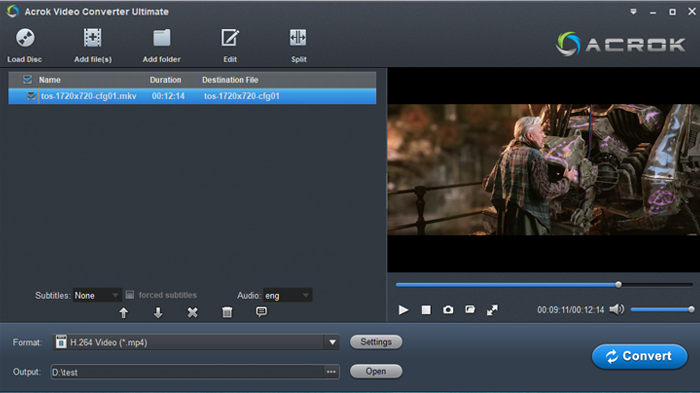
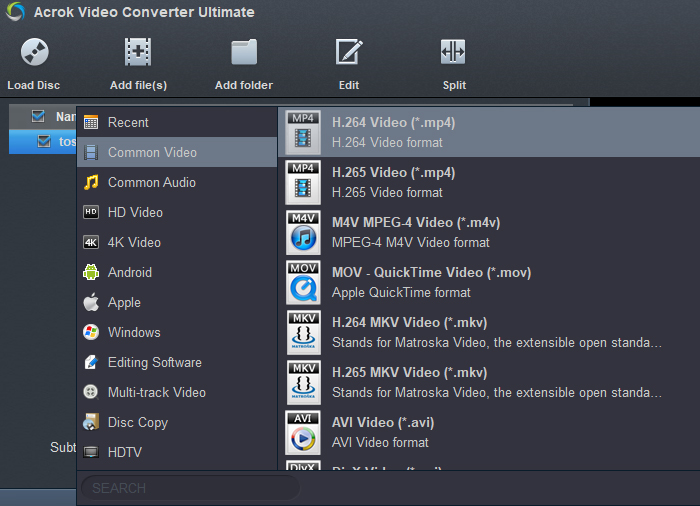
For the smoothest experience, I strongly recommend this approach. Converting your library to MP4 means you never have to worry about codec mismatches, player compatibility, or sudden playback failures. It‘s a one-time investment that pays off every time you watch a movie.
Method 2: Install a Universal Media Player on Your Android TV
If you‘d rather not convert your AVI files, installing a third‑party player is the simplest path to playing AVI files on Android TV without modifying your videos.
VLC for Android TV is the top recommendation. It‘s completely free, open‑source, and ships with its own built‑in codec library — meaning VLC doesn’t rely on your TV‘s native codec support. VLC plays virtually every video format you can throw at it, including AVI, MKV, MOV, FLV, and even DVD ISOs. The Android TV version is optimized for remote control navigation and works perfectly on all Android TV devices. Its internal decoders handle DivX and Xvid‑encoded AVI files with no additional configuration required.
Kodi is another powerful option. Originally designed as a home theater hub, Kodi functions as an excellent media player with support for almost every file format. It’s particularly useful if you manage a large video library, as Kodi automatically scrapes metadata (posters, descriptions, subtitles) and organizes your content beautifully. The learning curve is steeper than VLC‘s, but for serious movie collectors, Kodi is unmatched.
MX Player also deserves a mention. Known for its hardware acceleration capabilities, MX Player can handle 4K Ultra HD playback on modern Android TV devices, though for older AVI files you may need to install additional ARM64 codec plugins depending on your device‘s hardware.
How to set it up:
- Open the Google Play Store on your Android TV.
- Search for “VLC for Android TV” (or “Kodi” / “MX Player”).
- Install the app — all are free.
- Launch the app and navigate to your AVI video file (on USB drive, network share, or internal storage).
- Press play. That’s all there is to it.
A quick note on limitations: Even third‑player apps may struggle with unusual or obsolete codecs. I have personally encountered AVI files that played fine on a computer but refused to be recognized by any player on Android TV. If you run into this situation, conversion (Method 1) is still your best option.
Method 3: Transfer AVI Videos to USB Flash Drive with the Right File System
Even with a compatible player, your USB drive itself can cause playback problems if not formatted correctly.
Most Android TV devices recognize USB flash drives formatted with FAT32 or exFAT. But there‘s a catch: FAT32 has a 4GB individual file size limit. If your AVI movie exceeds 4GB — which is common for longer films or higher-quality encodes — your Android TV may not detect the file at all.
The solution: Format your USB drive as exFAT. This file system supports files larger than 4GB and is widely compatible with Android TV devices. Alternatively, some newer Android TVs support NTFS, though compatibility varies by manufacturer.
Step-by-step to transfer AVI videos to USB flash drive and play them:
- Connect your USB flash drive to your computer.
- If necessary, reformat the drive to exFAT (warning: this erases all existing data).
- Copy your AVI videos (whether original or converted to MP4) onto the USB drive.
- Safely eject the drive from your computer.
- Plug the USB drive into a USB port on your Android TV.
- Open your preferred media player (VLC, Kodi, or the built‑in player).
- Navigate to the USB drive using the file browser — the TV should automatically detect the drive.
- Select your video and enjoy.
For users with large movie collections, a USB flash drive remains the most convenient way to transfer content without relying on network streaming or cloud storage.
Method 4: Use the Built‑In File Manager to Access Network Storage
If you prefer to keep your video files on your computer or network attached storage (NAS) rather than a USB drive, Android TV‘s file manager capabilities can help.
Most Android TV devices come with a basic “Files” or “File Manager” app pre‑installed. This app lets you access not only USB drives but also network storage locations, including:
- Network shares (SMB / Windows shares) – If your computer has shared folders, you can stream videos directly over your home network.
- Cloud storage – Some file managers integrate with Google Drive, Dropbox, and OneDrive.
- DLNA / UPnP media servers – These automatically index your video library and make it visible to any DLNA client on your network.
To access network storage: open your Android TV‘s file manager, look for an option labeled “Network” or “Add network location,” and enter the address of your shared folder. Once connected, you can browse and play AVI files directly from your computer without copying anything to the TV — provided you have a compatible player app installed that can handle the AVI codec.
Comparing the Four Methods: Which One Should You Choose?
| Method | Difficulty | One‑Time Setup | Plays All AVIs? | Best For… |
|---|---|---|---|---|
| Convert to MP4 | Moderate (initial learning curve) | Yes — convert once, play forever | Yes — completely eliminates compatibility issues | Users who want the most reliable, future‑proof solution |
| Install VLC/Kodi | Easy | Yes | Most, but not all (some old codecs may still fail) | Casual users who prefer not to convert files |
| USB with exFAT | Trivial | No | Depends on player compatibility | Users who already store videos on USB drives |
| Network streaming | Moderate | Yes | Depends on player compatibility | Users with a home media server or PC |
My recommendation: If you have a large collection of AVI files you plan to watch regularly, invest the time to convert AVI to Android TV playable format using a reliable desktop converter. Once your library is in MP4 format, you’ll never have to troubleshoot playback issues again. You can then sync AVI movie to Android TV via USB flash drive, network share, or cloud storage and play it through the native player without any extra apps.
If you only have a handful of AVI files and prefer a quick fix, installing VLC for Android TV from the Google Play Store is your best bet — you’ll be watching in under two minutes with no conversion required.
Final Troubleshooting: What to Do If Nothing Works
Even after applying the methods above, you may still encounter issues. Here are a few final checks:
Restart your Android TV. It sounds simple, but a full restart — unplugging the power cord for about two minutes — often clears up software glitches that interfere with video playback.
Clear app cache and data. If VLC or Kodi is crashing or refusing to play certain files, go to Settings → Apps → select the player → Clear cache and Clear data. This resets the app without deleting your videos.
Check your video file. Copy the problematic AVI file back to your computer and test it in VLC desktop. If it doesn‘t play there either, the file itself may be corrupted.
Test with a different USB port. Some Android TV devices have multiple USB ports with varying levels of power delivery. Try moving your USB flash drive to another port.
Summary
To play AVI files on Android TV, you have four practical solutions:
- Convert AVI to Android TV playable format (MP4 / H.264 / AAC) — the most reliable long‑term solution.
- Install VLC or Kodi from the Google Play Store — the easiest quick fix.
- Format your USB drive as exFAT and transfer your videos — essential for large files.
- Use network streaming from a computer or NAS — ideal for existing home media setups.
For the smoothest experience, I recommend converting your AVI library to MP4. Once converted, you can sync AVI movie to Android TV via USB flash drive without worrying about codecs, players, or sudden playback failures. Whichever method you choose, you‘ll never have to see that dreaded “format not supported” error again.
Happy viewing.
Tags: play avi video on anroid, watch avi files on android phones, convert avi to android format, play avi movies on android tv



No responses yet